What Are Fog AI Photo Editing Prompts?
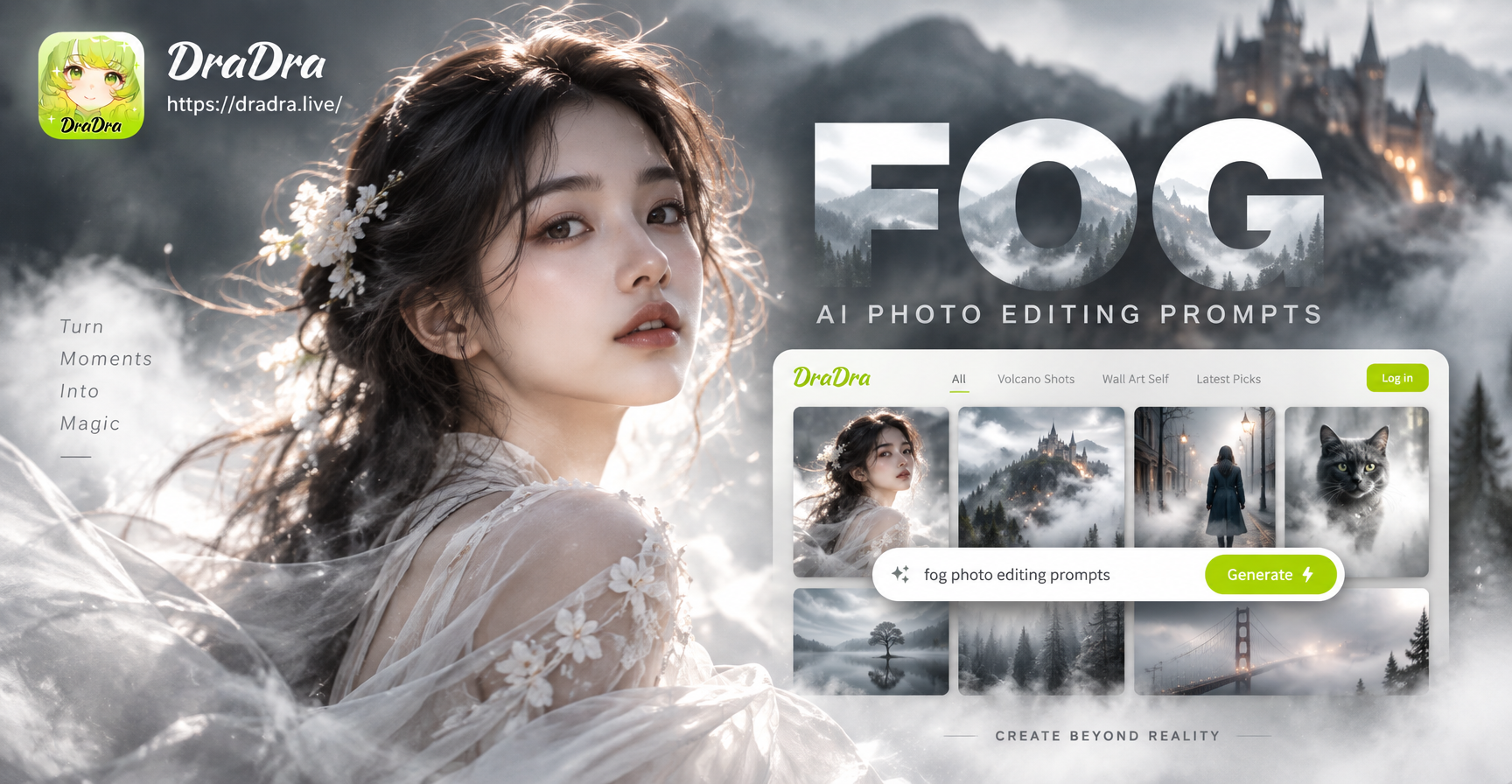
Fog AI photo editing prompts are text instructions you give to an AI image generator to add or enhance fog, mist, or haze in a photo. Fog changes the entire mood of an image. It softens edges, adds depth, and introduces a sense of mystery or calm. With the right prompt, you can turn a clear landscape into a moody morning scene, or make a portrait feel dreamy and ethereal. These prompts work best in apps like dradra, which has image-to-image and text-to-image tools designed for fast creative edits without complex settings.
The prompts below are ready to use. Copy any prompt, open the dradra app, and paste it into the prompt field. For editing an existing photo, use the image-to-image feature and add the prompt as a style or edit instruction. For creating a brand new image, use text-to-image with the prompt alone.
How to Use These Prompts in dradra
dradra is an all-in-one AI design app for mobile. After downloading it from Google Play, you can upload a photo and apply a fog prompt as a style transfer or as a direct edit. The app supports both text-to-image and image-to-image generation, so you have two ways to work. For photo editing, pick the image-to-image option, upload your photo, then enter the fog prompt. You can also choose a style template like cinematic, realistic, or fantasy to further shape the result. The prompts in this article are designed to work with or without a template, but they are most effective when you keep the subject and composition clear.
Pro Tip for Better Fog Edits
Always include a color temperature, light direction, and fog density in your prompt. For example, "thick morning fog" is different from "thin veil of mist." Specific details help the AI understand exactly how much fog you want and where it should sit in the frame.
Best Fog AI Prompts for Landscapes
Landscapes are the most popular use case for fog photo editing. Fog adds layers, conceals distracting background elements, and creates a timeless, painterly quality. Use these prompts on forest, mountain, lake, or field photos.
- Forest at dawn: A dense pine forest at first light, thick low fog rolling between tree trunks, soft diffused sunlight filtering through the canopy, muted greens and grays, cinematic nature photography, high detail, serene and quiet.
- Misty valley: A wide valley filled with a smooth layer of fog at sunrise, distant hills barely visible, cool blue and lavender tones, soft pastel sky, minimalistic landscape, fine art photography style.
- Lake fog: A calm lake surface with gentle fog rising from the water, a wooden dock disappearing into the mist, overcast sky, monochromatic blue-gray palette, quiet and peaceful, long exposure effect.
- Mountain pass: A winding mountain road partially obscured by patchy fog, dramatic cliffs on both sides, warm golden hour light breaking through the clouds, high contrast, epic adventure photography.
- Autumn fog: A forest path covered in fallen orange leaves, soft fog hugging the ground, backlit by a low sun, rich warm amber and rust tones, dreamy and nostalgic atmosphere.
- Coastal fog: A rocky coastline shrouded in dense marine fog, waves crashing softly against the rocks, lighthouse beam cutting through the mist, cool gray and teal palette, moody seascape.
Fog AI Prompts for Portraits
Fog in portraits creates a soft, dreamlike effect. It can hide skin imperfections, separate the subject from the background, and add a cinematic story feel. These prompts are ideal for portrait photo edits.
- Misty morning portrait: A close-up portrait of a person standing in a foggy field at sunrise, soft golden light on the face, ethereal glow, gentle mist in the background, shallow depth of field, warm skin tones, cinematic portrait photography.
- Moody urban portrait: A street portrait with light fog drifting across the frame, neon signs glowing dimly in the background, cool blue and teal color grade, subject looking away, film noir atmosphere, 85mm lens style.
- Fantasy forest portrait: A portrait of a person in a dark forest with thick magical fog swirling around them, glowing particles in the air, teal and purple accent lighting, mysterious and enchanting, concept art style.
- Soft window light portrait: A portrait by a window with delicate fog outside, soft diffused light on the face, neutral tones, minimalistic background with just a hint of mist, natural and airy look.
- Night fog portrait: A portrait taken at night with a thin layer of fog, street lamps creating soft halos in the background, dramatic rim lighting on the subject, deep shadows, cinematic thriller mood.
- Vintage fog portrait: A black and white portrait with soft fog, high contrast, film grain, classic Hollywood glamour style, subject looking over the shoulder, timeless and elegant.
Fog Prompts for Urban and Street Scenes
City fog adds a layer of intrigue and can make ordinary streets look like movie sets. Use these prompts on urban photos to create a cinematic or dystopian feel.
- Rainy city street: A wet city street at night with thick fog, reflections of neon signs on the asphalt, pedestrians with umbrellas silhouetted in the mist, cool cyan and magenta tones, blade runner aesthetic.
- Morning commute: A busy intersection at dawn with soft fog between buildings, warm sunlight breaking through the haze, long shadows, slightly desaturated colors, documentary street photography style.
- Abandoned alley: A narrow alley filled with thick fog, old brick walls, a single flickering light bulb, muted earthy tones, sense of mystery and isolation, film still from a noir movie.
- Rooftop view: A city skyline emerging from a sea of fog at sunrise, only the tops of skyscrapers visible, soft pink and orange sky, aerial view, minimalistic and serene.
- Subway entrance: Steam and fog rising from a subway grate, backlit by a single streetlight, a person walking past, cool blue tones, high contrast, cinematic composition.
Fog Prompts for Creative and Fantasy Edits
If you want to go beyond realism, these prompts add a surreal or storybook quality to your images. They work well with dradra's fantasy and anime style templates.
- Ghostly forest: A dark forest with glowing white fog, silhouettes of trees fading into the mist, a faint figure in the distance, pale blue and silver palette, eerie and supernatural, concept art.
- Floating islands: A fantasy landscape with floating islands partially hidden by soft clouds and fog, waterfalls falling into the mist, warm sunset light, vibrant colors, epic digital painting.
- Dreamlike meadow: A grass meadow at dawn with low fog and floating glowing orbs, a small cottage barely visible in the distance, soft pastel pink and green tones, storybook illustration style.
- Misty dragon valley: A valley filled with thick fog with a dragon silhouette emerging from the mist, dramatic backlighting, dark and brooding atmosphere, high fantasy concept art.
- Enchanted bridge: An old stone bridge over a foggy river, moss covered, soft golden light filtering through the mist, hidden magical glow beneath the bridge, whimsical and serene.
Common Mistakes When Using Fog Prompts
Even with a good prompt, results can miss the mark. Here are a few common issues and how to fix them.
Too Much Fog Hides the Subject
If the AI adds so much fog that the subject disappears, add a phrase like "subject clearly visible" or "subject 70% visible, fog in background only." This tells the AI to keep the main element sharp and readable.
Wrong Color Temperature
Fog can go either warm or cool. A prompt without temperature may produce a muddy gray. Specify "warm golden fog at sunrise" or "cool blue mist at night" to control the mood.
Flat and Lifeless Results
Fog can reduce contrast too much. Add "high contrast" or "dramatic lighting" to retain depth. You can also ask for "soft rim light on the subject" to create separation.
Unnatural Fog Placement
Sometimes the AI places fog in front of the face or over the main object. Use phrases like "fog behind the subject" or "fog low to the ground" to control placement.
Tips for Getting the Best Fog Edits in dradra
Start with a clear source photo. A photo with a visible subject and some depth works best. Avoid images that are already heavily filtered or very low resolution. In the dradra app, choose a style template that matches your desired mood, then add the fog prompt as an edit instruction. For image-to-image edits, keep the strength adjustment moderate so the original subject remains intact. For text-to-image generation, include the composition and subject in the prompt itself. You can also combine a fog prompt with a negative prompt if dradra supports it, such as "no blurry subject" or "no extra fingers." Experiment with short variations of the prompts. Changing one word, like "thick" to "thin," can dramatically alter the result. Save your favorite results and reuse the prompts as a starting point for future edits.
Why Fog Photo Editing Works So Well with AI
Fog is a natural diffuser. It softens light, reduces clutter, and creates a dreamlike separation between foreground and background. AI image generators excel at producing this kind of atmospheric effect because they can simulate fog density, light scattering, and color shifts in a way that would take hours with manual editing tools. With dradra, you get that power in a mobile app, with no complex sliders or masks required. Just describe the fog you want, and the AI handles the rest.
Ready to Create Your Own Foggy Edits?
These fog AI photo editing prompts are a starting point. The best way to learn is to try them. Download dradra from Google Play, open the app, and paste one of the prompts above. Within seconds you will see your photo transformed by mist, haze, or rolling fog. Start with a simple landscape prompt, then move to portraits and creative edits. Each try teaches you how the AI interprets words like "veil," "blanket," or "wisps" of fog. Soon you will be writing your own prompts with confidence.