## What Is AI Style Transfer?
AI style transfer is a technique that takes the visual style of one image and applies it to the content of another. In everyday terms, you start with a photo of your dog, a city street, or a family portrait. You pick a style reference such as oil painting, watercolor, anime, cyberpunk, or studio lighting. The AI then produces a new image that keeps the subject and composition of your original photo while reworking the colors, textures, and lighting to match your chosen style.
Unlike basic filters that simply adjust saturation or contrast, style transfer changes the visual language of the image. A portrait can become a Renaissance oil painting. A landscape can turn into a Studio Ghibli style scene. A product photo can look like a cinematic still. The result is not a copy of the style reference. It is a new combination of your content and the reference style.
This technique has become popular because it removes the need for manual painting skills, complex editing software, or prompt engineering. You do not need to know how to describe brush strokes or color grading. You only need a clear source photo and a style that fits your goal.
## How AI Style Transfer Differs From Ordinary Filters
Ordinary filters change global properties such as brightness, contrast, saturation, and color temperature. They apply a fixed adjustment to every pixel. Style transfer is different. It can introduce entirely new textures, brushwork, lighting patterns, and even structural details that were not present in the original photo.
For example, a sepia filter makes a photo look old. A watercolor style transfer can turn the same photo into a painted scene with soft edges, paper texture, and pigment like color blending. A Ghibli style can add hand drawn details, gentle skies, and a warm palette.
This difference matters when you want more than a quick edit. If you only need to correct exposure, a basic filter is enough. If you want to change the medium, the mood, or the visual genre, style transfer is the better tool.
## How AI Style Transfer Works
Most modern AI style transfer tools use deep learning models that have been trained on large sets of images. These models learn to separate content from style. Content includes shapes, edges, and the arrangement of objects. Style includes color palettes, brushwork, lighting direction, and texture patterns.
When you upload a photo and choose a style template, the model analyzes both inputs. It then iteratively adjusts pixel values until the output preserves the content structure of your source photo while adopting the visual characteristics of the style. Newer diffusion based models go further. They can interpret the style template as a guide and generate completely new details that match the style, rather than just overlaying a texture.
The process is usually fast on a mobile device because the heavy computation happens in the cloud. You see progress in the app, and the final image is delivered to your photo library or gallery. This makes the technique accessible to anyone with a smartphone.
## Why Use a Mobile App for Style Transfer?
Desktop tools can offer precise control, but they often require installation, subscriptions, and a learning curve. Mobile apps like dradra are designed for the opposite experience. You open the app, pick a style, upload a photo, and generate. The interface is built around speed and discoverability. You can test five different styles in the same time it takes to open a desktop editor.
Another advantage is the template library. dradra offers a large set of style filters ranging from realistic photography to anime, 3D clay, Ghibli style, cyberpunk, watercolor, oil painting, and cinematic quality. This variety matters because style transfer is often about experimentation. You may not know whether your portrait works better as a watercolor or as a cinematic still until you see both.
Mobile apps also make it easier to move from a static image to a video. After you create a stylized image, you can use image to video features to animate it. This is useful for social media content, invitations, or just trying a trend.
## Step by Step: Turning a Photo Into Art
Here is a practical workflow using the dradra app. The app is available on Google Play and runs on Android devices.
1. Download and open dradra.
Search for dradra on Google Play and install the app. Open it and allow access to your photo library if you plan to upload your own images.
2. Choose your source photo.
Pick a clear photo with good lighting and a visible subject. Portraits work well when the face is not too small. Landscapes work best when there is a clear foreground and background. Avoid heavily blurred or dark photos, because the style model needs enough structure to preserve.
3. Select a style template.
Browse the style library and tap one that matches your goal. For a classic art look, try oil painting or watercolor. For a Japanese animation feel, choose anime or Ghibli style. For a futuristic mood, select cyberpunk. For realistic but polished results, use the cinematic or studio photography templates.
4. Generate the image.
Tap generate and wait for the result. The app will show you the output. If the first result is not exactly what you wanted, try a different template or upload a sharper photo. Style transfer is iterative, so small changes can make a big difference.
5. Save and share.
Once you are happy with the result, save it to your device. You can share it directly to social media or use it as a starting point for a video animation.
## Choosing the Right Style for Your Photo
Not every style works equally well with every photo. A few guidelines can help.
Portraits: Oil painting, watercolor, and cinematic styles often look natural on faces. Anime and Ghibli styles can also work well, especially if you want a whimsical or editorial look. Avoid heavy cyberpunk effects on tight face crops unless you want a deliberately futuristic result.
Landscapes: Watercolor, oil painting, and anime styles tend to enhance natural scenes. Cyberpunk works best for city streets with neon lights or night photography. Cinematic styles can add dramatic color grading to mountains, beaches, or rural roads.
Product or food photos: Studio lighting and realistic photography templates help keep texture and detail clear. A cinematic style can make a product image feel like a scene from a film.
Group photos: Choose a style that does not distort faces too much. Watercolor and cinematic filters are often safer than aggressive anime or 3D clay styles. dradra also has group photo processing that identifies different faces, which helps maintain consistency when styling images with multiple people.
## From Still Image to Moving Video
One of the biggest creative leaps is turning a stylized still into a short video. With dradra, after you create an image in a chosen style, you can use image to video generation to animate it. You might make a portrait blink, smile, or turn its head. A landscape can gain moving clouds or shifting light. This is useful when you want to post a video rather than a photo, or when a still image is not enough to hold attention.
The workflow is simple. Generate your stylized image first. Keep the one you like. Then look for the image to video option in the app, select the image, and choose an animation type. Let the AI generate a short clip. Preview it, save it, and share.
This combination of style transfer and image to video is especially popular for social media trends such as old photo revival, Ghibli style animation, and AI Hug or AI Kiss effects. Because the heavy lifting is handled by the AI, you do not need to know how to edit frames or use animation software.
## Practical Tips for Better Results
Use a clean source photo. The clearer the input, the better the output. For portraits, avoid heavy shadows across the face. For objects, use a simple background so the AI can separate the subject from the scene.
Try multiple styles. Do not settle for the first result. Generate two or three versions with different templates. You will often find that one style looks much better than you expected.
Adjust your subject distance. If the output looks cluttered, crop your source image so the subject fills more of the frame. If the result loses too much detail, use a wider shot with more context.
Use natural lighting. Photos taken in daylight or with soft indoor lighting usually transfer better than images with harsh flash. If your photo is too dark, brighten it slightly before uploading.
For group photos, choose templates that preserve facial structure. dradra's group photo processing helps distinguish different faces, which is important when you do not want faces to blend or lose identity.
Do not expect the AI to fix a bad photo. If the original is blurry, out of focus, or very low resolution, the style transfer may amplify those problems. Start with the best photo you have.
## Common Mistakes to Avoid
One common mistake is choosing a style that fights the content. A cyberpunk template on a soft pastel portrait can create an unsettling result. A watercolor style on a dark night scene may lose all definition. Match the mood of the style to the mood of the photo.
Another mistake is using the same approach for every image. Style transfer is not a one click magic fix. It works best when you treat it as a creative tool and test variations.
Some users also forget to check the output resolution. If you plan to print the image or use it in a large format, generate at the highest quality available in the app. For social media posts, standard resolution is usually enough.
Finally, avoid over-editing after the style transfer. Heavy contrast, sharpening, or additional filters can destroy the AI generated texture. If you must adjust, make small changes.
## Style Transfer Use Cases in Everyday Life
Style transfer is not only for artists. It can be used for birthday invitations, wedding save the date cards, holiday greetings, and personal profile pictures. A photo from a recent trip can be turned into a watercolor print for the wall. A picture of a pet can become a playful anime illustration for a phone wallpaper. A food photo can be transformed into a painterly image for a menu or a social post.
Small businesses can use style transfer to create a cohesive look for product listings. Instead of hiring a photographer for every seasonal campaign, they can generate multiple stylized versions from a single product photo. This works particularly well for handmade goods, ceramics, clothing, and cosmetics, where an artistic finish supports the brand.
Content creators can use style transfer to repurpose old photos. A holiday photo from five years ago can be reimagined in a new visual style and posted again. This gives older content new life without the cost of a new photo shoot.
## Building a Consistent Visual Style
If you manage a social media account, consistency matters. Style transfer can help you develop a recognizable visual identity. Start by selecting one or two style templates that match your brand. Use those same templates for every post. Over time, your audience will associate that specific look with your content.
This approach works well with the template library in dradra. Because the app includes a large set of filters, you can test different options on the same photo and compare. Once you find a style that works, reuse it across your posts. Keep a folder of reference outputs so you can remember which template you used.
## Troubleshooting Unusual Results
Sometimes the output looks distorted, blurry, or different from what you expected. The first step is to check the source photo. Low resolution, heavy shadows, and busy backgrounds are common causes of poor results. Crop the photo and improve the lighting before trying again.
The second step is to change the style template. Some styles are more aggressive than others. If a cyberpunk filter is too extreme, try a cinematic or studio template. If an anime style makes faces look odd, switch to a watercolor or oil painting style.
The third step is to use a different photo. Not every image works with every style. A well lit portrait with a plain background usually transfers better than a dimly lit group shot in a crowded room.
## Combining Style Transfer With Text to Image
Style transfer works from a photo, but dradra also supports text to image generation. This can be useful when you want to create a scene from scratch rather than modify an existing photo. For example, you can type a description of a mountain landscape at sunset in oil painting style, select the oil painting template, and generate a brand new image.
The two techniques complement each other. Use style transfer when you want to preserve a specific person, place, or object. Use text to image when you need an entirely new scene. Because both are available in the same app, you can move between them without switching tools.
## Privacy and Content Considerations
When you upload a photo to any AI tool, you are sharing an image with a service. Before using a style transfer app, review its privacy policy to understand how your images are handled. Use only photos you have the right to share and edit. Do not upload images of other people without their permission, especially if you plan to post the result publicly.
Style transfer can produce images that look like real paintings or photographs. If you share AI generated images on social media, consider labeling them clearly, particularly when the image resembles a real person or a specific location. This is not just good practice. It helps your audience understand what they are seeing.
Also keep copyright in mind. If you use a style reference that is an artist's original work, do not present the result as an exact copy or claim the artist created it. Style transfer is a tool for inspiration, not for reproducing copyrighted works without permission.
## Who Should Try AI Style Transfer?
The technique is useful for a wide range of people. Social media creators can turn ordinary photos into scroll stopping visuals. Small business owners can give product shots a consistent artistic look without hiring a designer. Teachers and students can create visuals for presentations or projects. Anyone who enjoys photography can explore new aesthetics without learning complex software.
It also helps people who feel stuck creatively. When you can see your own photo transformed into a painting or anime scene, you start to notice what changes and why. That observational skill transfers back to your own photography and composition choices.
## How dradra Fits Into This Workflow
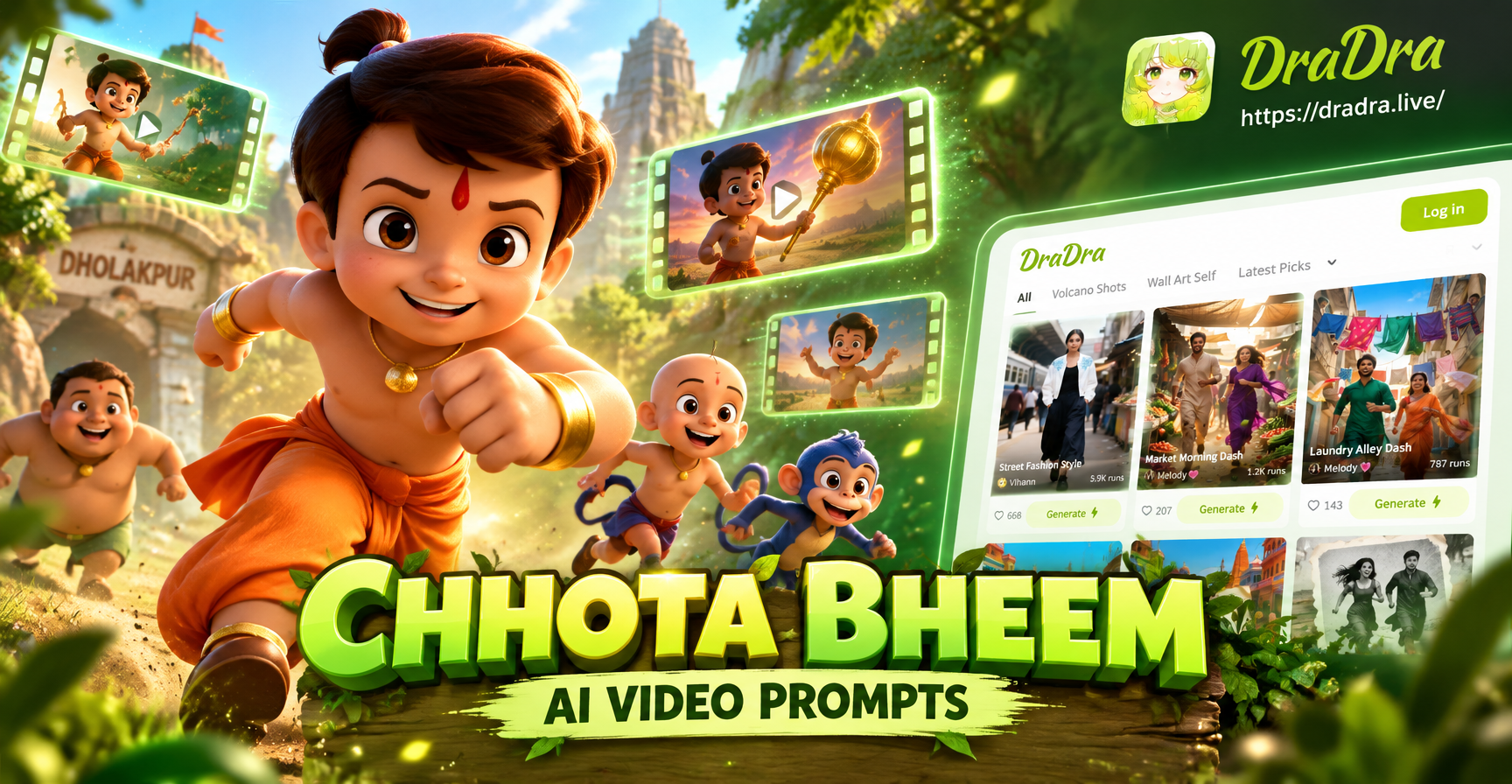
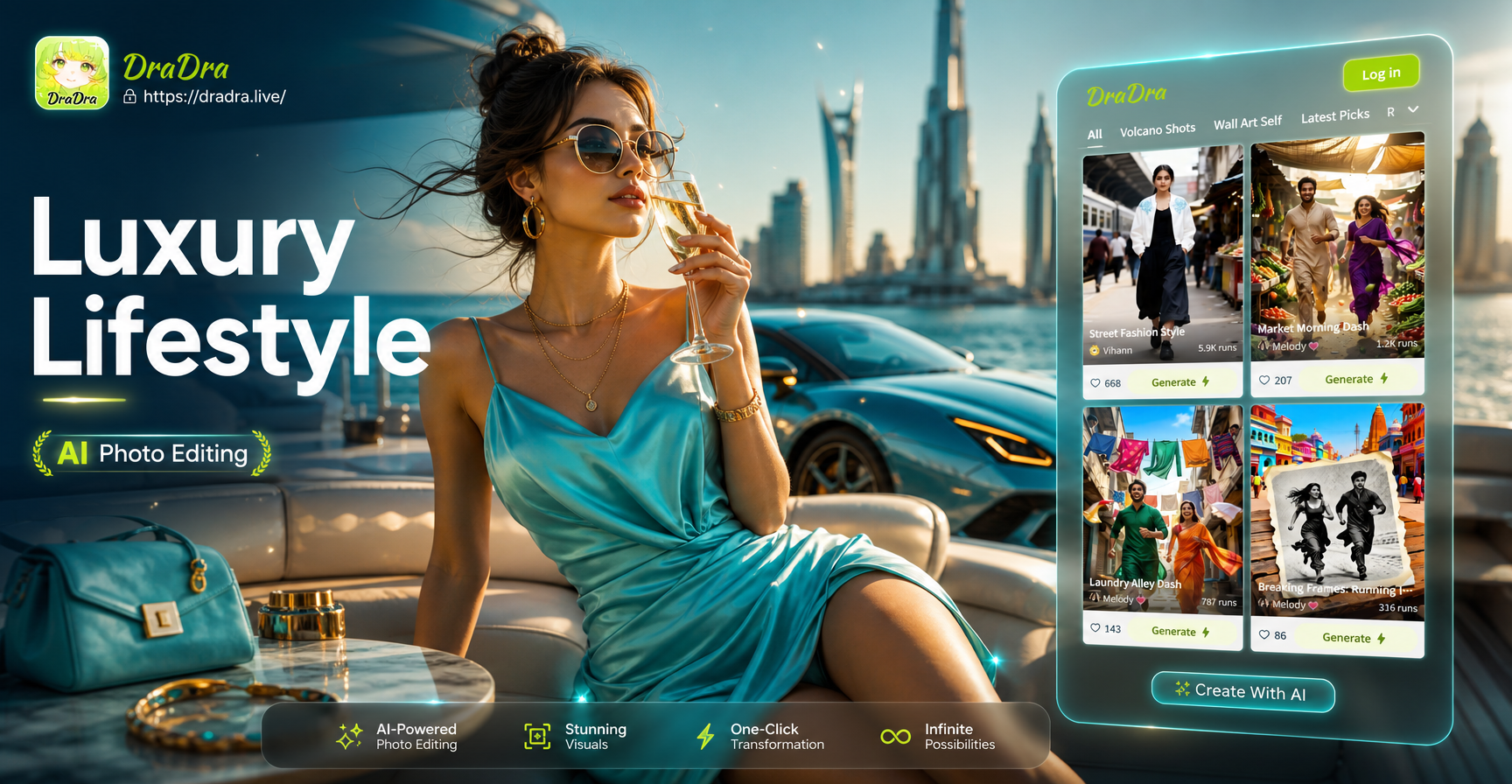
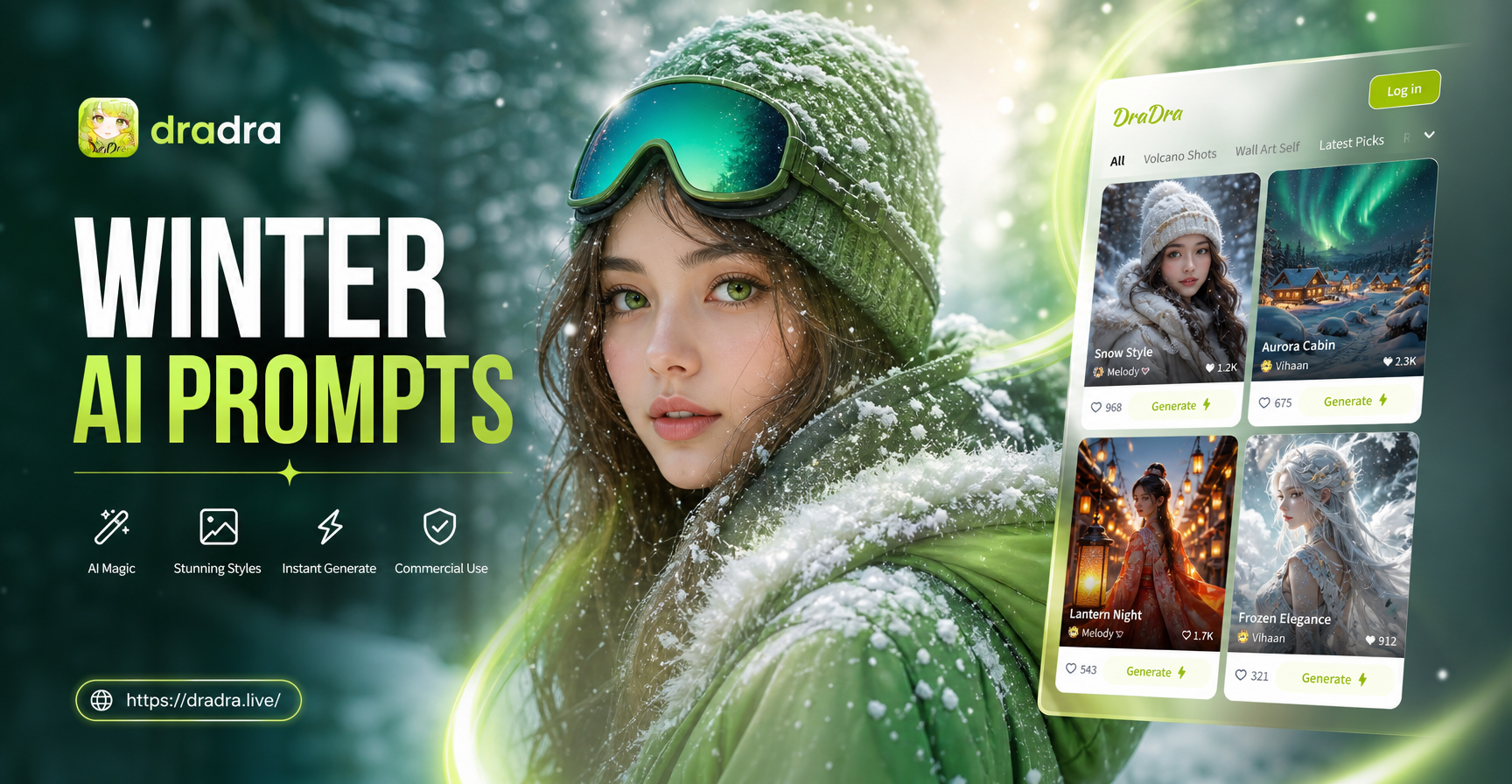
dradra is an all in one AI design tool built for mobile. It combines text to image, image to image, text to video, and image to video generation. The style filter library is large enough that you can experiment without hunting for separate filters or plugins. The operation is simple: choose a template, upload a photo or type a description, and generate.
For style transfer specifically, the image to image feature is the core. You upload a reference photo, select a style template, and let the AI create a new version. The same workflow also supports text to image if you want to create a completely new scene from a description. And because the app is mobile only, you can do this from anywhere.
If you want to go further, you can use the video generation features to animate the results. This makes it possible to create not just a stylized portrait, but a short animated clip that looks professional enough for social media.
The important thing is to approach dradra as a creative partner rather than a magic button. Start with a clear photo, choose a style that fits your goal, test a few options, and refine from there.
## What to Do Next
If you are new to AI style transfer, start with a single portrait or landscape. Download the dradra app from Google Play. Pick one style template that you like. Generate five versions with different photos and styles. Compare the results. Pay attention to which styles work best with your subject matter.
Once you are comfortable with still images, try the image to video feature. Turn one of your stylized images into a short animation. This will give you a sense of how far the tool can go.
Finally, keep a folder of your best outputs. Over time, you will build a personal style library that makes your next project faster and more consistent.