## What Is AI Style Transfer on Mobile?
AI style transfer on mobile is the process of taking a photo and re-rendering it in a different visual style while keeping the main subject, pose, and composition recognizable. Unlike a basic color filter that shifts tones and contrast, style transfer works through a neural model that learns patterns from a reference style. It can turn a portrait into an oil painting, a street photo into anime art, or a product shot into a 3D clay render. Because modern phones can now run or access these models through cloud processing, the workflow no longer requires a desktop editor or design background.
Mobile style transfer tools usually offer two main paths. The first path uses a preset style template, such as watercolor, cyberpunk, or cinematic photography. The second path lets you upload a reference image and apply its visual characteristics to your own photo. In both cases, the app must balance identity preservation with style strength. If the style is applied too aggressively, faces and objects may become unrecognizable. If it is applied too lightly, the result may look like a simple filter.
## How Mobile Style Transfer Works
The process behind style transfer is based on image generation models that combine content features from your source photo with style features from a reference or template. When you start a style transfer task, the app encodes your photo into a set of features. The model then generates a new image that keeps the content structure while adopting the texture, color palette, and brushwork of the selected style. Many mobile apps simplify this into a one-tap experience. You do not need to write prompts or adjust complex parameters.
Because the generation happens inside the app, the best results come from a source image that has a clear subject and reasonable resolution. The AI can do more with a well-lit portrait than with a blurry group shot taken in low light. That does not mean every image must be professional. It means the model needs enough visual information to separate the subject from the background and apply the style without creating artifacts.
## Why Mobile AI Style Transfer Is Worth Trying
A mobile workflow is useful for creators who want to produce visual content quickly. You might be a social media manager preparing an announcement, a small business owner refreshing product images, or a hobbyist experimenting with a new look. The main benefit is turnaround time. You can shoot a photo, open an app, choose a style, and have a finished image in minutes without transferring files to a computer.
Mobile apps also lower the technical barrier. Instead of learning layer masks, brush tools, or prompt syntax, you can work with visual templates. This makes style transfer accessible to people who are not graphic designers. For example, a local cafe owner can photograph a latte and turn it into a watercolor illustration for a menu board. A musician can take a portrait and generate a cinematic poster for a single release. These tasks would normally require either design software or hiring a freelancer.
## The Core Workflow
The exact steps vary by app, but most mobile AI style transfer tools follow a similar sequence.
1. Download an AI design app from Google Play. Confirm that the app supports image-to-image generation or style transfer.
2. Open the app and select the Image to Image or Style Transfer option.
3. Upload a clear source photo from your gallery or take a new photo with the camera.
4. Browse the style library and choose a template that matches the mood you want.
5. Generate the image and inspect the result on your phone screen.
6. Save the image to your gallery or share it directly to social channels.
Some apps also support video generation from a still image. In that case, the same photo can be animated with subtle motion, such as blinking, turning the head, or moving background elements. The workflow remains simple: upload an image, choose a motion style or video template, and generate the result inside the app.
## How to Choose a Source Photo
### Focus on a Clear Subject
A style transfer model works best when the subject is obvious. A single person, a product, a pet, or a building usually produces cleaner results than a crowded scene with many competing elements. If you are working with a group photo, look for an app that specifically supports multi-person processing. Not all models handle multiple faces equally well, so test with a smaller group before committing to a final image.
### Use Good Lighting
Even lighting reduces shadows and makes it easier for the model to preserve facial details. Natural daylight near a window or outdoor shade usually works better than harsh flash or mixed indoor lighting. If your photo is dark, the AI may have to invent too many details, which can lead to distorted features.
### Avoid Overly Busy Backgrounds
A plain or softly blurred background gives the style transfer model more freedom to apply texture and color without confusing the subject with background elements. If the background is too busy, the app may apply the same style to every object and the result can feel visually noisy.
### Check the Resolution
Use the highest quality version of your photo available. A sharp image gives the model more data to work with. If the source is heavily compressed from a messaging app, the result may inherit blurriness or compression artifacts.
## Popular Style Categories to Try
Most mobile AI design apps organize their effects into categories. The following directions are common starting points.
- Realistic photography styles: These can change the lighting, skin tone, and color grading while keeping the image photo-realistic.
- Anime and illustration styles: These re-render portraits and landscapes with line art, cel shading, or hand-drawn textures.
- 3D and clay styles: These give people and objects a sculpted, toy-like appearance.
- Oil painting and watercolor styles: These add traditional art textures and brushstrokes.
- Cyberpunk and cinematic styles: These introduce neon lighting, dramatic contrast, and film-like color palettes.
When testing a new app, start with one or two categories. Run the same photo through different styles to understand how the tool handles color, faces, and edges. This quick test helps you predict which subjects will work well before you spend time on a final project.
## Practical Project Ideas
### Portrait Art for Profile Pictures
A style transfer portrait can make a profile picture stand out without looking heavily edited. For professional profiles, choose a realistic cinematic or studio lighting style. For creative accounts, anime or illustration styles can create a recognizable visual identity. Keep the face visible and avoid styles that distort the eyes or mouth.
### Social Media Visuals
Creators often need fresh visuals for posts, stories, and thumbnails. Style transfer lets you reuse a single photo across multiple formats and aesthetics. For example, a fitness coach can transform the same training photo into a gritty cinematic poster, a clean studio shot, and a 3D character illustration. Each version can serve a different platform or campaign.
### Product and Food Photography
Small businesses can use style transfer to create cohesive visuals for menus, flyers, or online stores. A plate of food can be converted into a watercolor illustration for a special menu. A handmade product can be shown in a soft 3D clay style for a seasonal promotion. The key is to maintain the product's recognizable shape and color while using the style as a decorative layer.
### Gifts and Personal Projects
Style transfer can turn a favorite pet photo or couple photo into a piece of art. Users may print the result as a gift or use it for a digital card. When creating gifts, pay extra attention to facial features. If the first result looks off, try a lower style strength or a different template.
### Short Video Loops
Some mobile apps include image-to-video tools that animate a still image after or instead of applying a style. You can start with a styled portrait and add a subtle smile, blink, or head turn. These short clips are useful for social media and can bring an otherwise static image to life.
## Common Mistakes to Avoid
### Expecting the AI to Fix a Bad Photo
Style transfer is not a repair tool. It does not automatically fix blurry focus, extreme noise, or incorrect exposure. If the source photo is weak, the styled output will also be weak. Start with the best photo you have, or take a new one before generating.
### Ignoring Aspect Ratio
Different platforms require different image dimensions. A style transfer result that looks good in a square format may not work as a vertical story or a horizontal thumbnail. Check the app's output size options before generating. If the app does not offer size controls, crop the final image after generation.
### Using the Same Strength for Every Image
Some apps let you adjust how strongly the style is applied. A high strength may look great on a landscape but unrealistic on a face. A lower strength may preserve the original photo while adding a subtle artistic mood. Test different levels on the same photo and compare the results side by side.
### Relying on a Single Style for Everything
Using one style repeatedly can make a feed look monotonous. Even within a single brand, you can rotate two or three complementary styles. For example, use a realistic cinematic look for product photos and a line-art style for announcements.
## What to Look for in a Mobile AI Style Transfer App
When choosing an app, focus on the workflow rather than the size of the style library alone. A large library helps only if the styles are well organized and produce consistent results. Look for an app that offers image-to-image generation, clear category navigation, and predictable face preservation. Video generation is a useful bonus if you plan to create animated content.
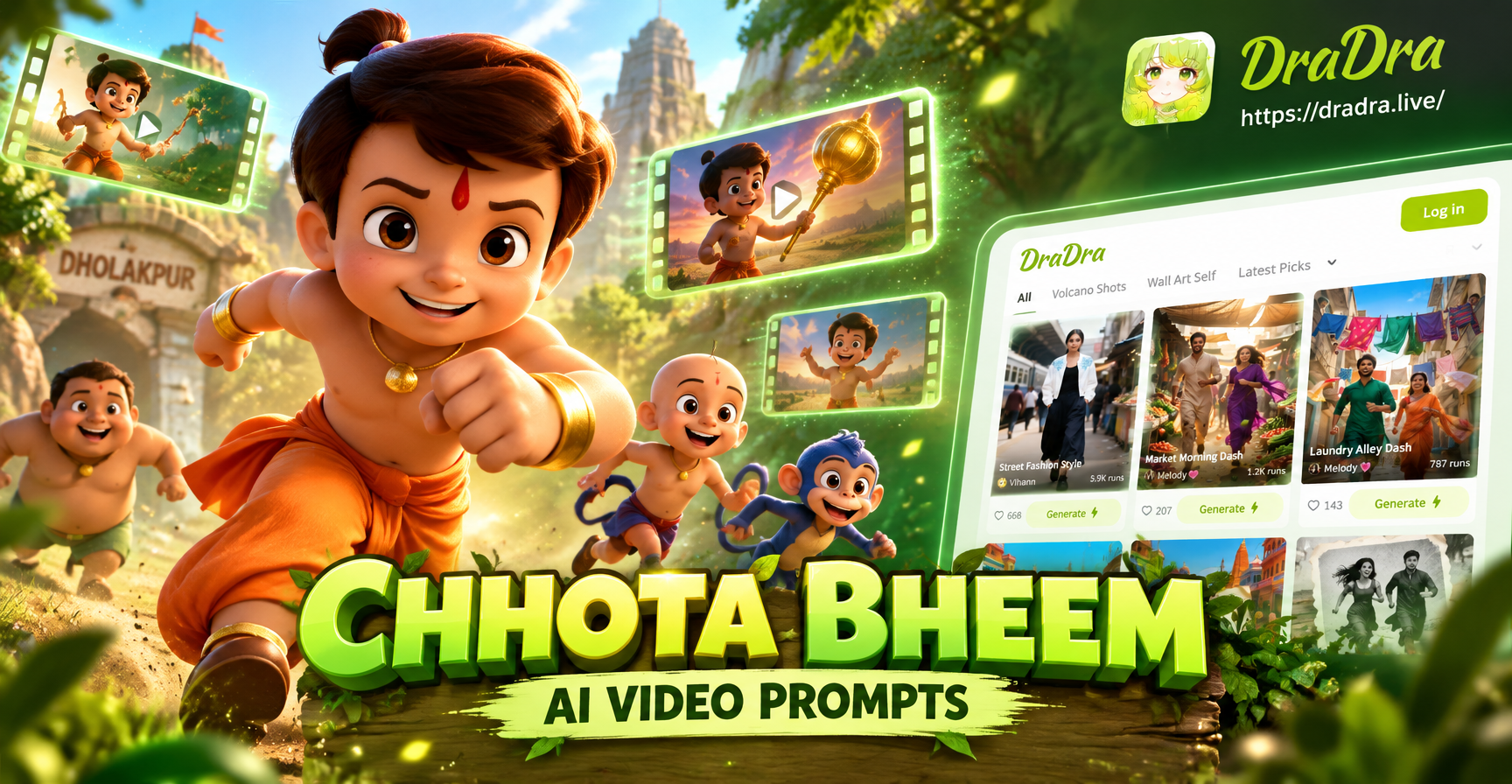
One mobile option is dradra, an AI design tool available on Google Play. Its workflow includes text-to-image, image-to-image, text-to-video, and image-to-video generation. Users can work inside the app, choose from a large collection of style templates, and generate images or videos without needing prompt engineering skills. This makes it a practical starting point for readers who want a simple mobile workflow. Because dradra is mobile-only, you should download the app from Google Play and complete all creative tasks there. Do not expect a separate web editor or desktop version.
The best approach is to test the app with a small project. Upload one clear portrait, apply three different styles, and compare the results. If the app preserves the face and produces clean edges, you can move on to more complex images. If the results look soft or distorted, try a different photo or adjust the style strength before giving up.
## Building a Repeatable Creative Workflow
A consistent workflow saves time and reduces decision fatigue. Start a folder on your phone for source images that work well. When you take a photo that has good lighting and a clear subject, mark it or move it to that folder. That way you always have ready material for style experiments.
Next, keep a short list of styles that match your purpose. If you create content for a brand, note which styles perform best on each platform. If you create personal art, save your favorite templates so you do not have to browse the full library every time.
Finally, review your generated images before exporting. Check the face, hands, edges, and text. AI models can still struggle with small details such as fingers, jewelry, or lettering. A quick review can prevent you from posting an image with obvious artifacts.
## Conclusion
Mobile AI style transfer turns an ordinary photo into artwork without requiring a desktop editor or design experience. The best results come from a clear source photo, a style that matches the subject, and a simple repeatable workflow. Whether you are creating profile art, social visuals, product images, or short animated clips, the process is accessible from an Android phone. Start with a single image and a small set of styles. Compare the results, refine your process, and only then expand into more ambitious projects. With a tool like dradra installed from Google Play, the entire creative loop can happen on your phone in a few minutes.